







Microsoft Copilot
Connect Mitti to Copilot and drive operational improvements with powerful AI tools
Features
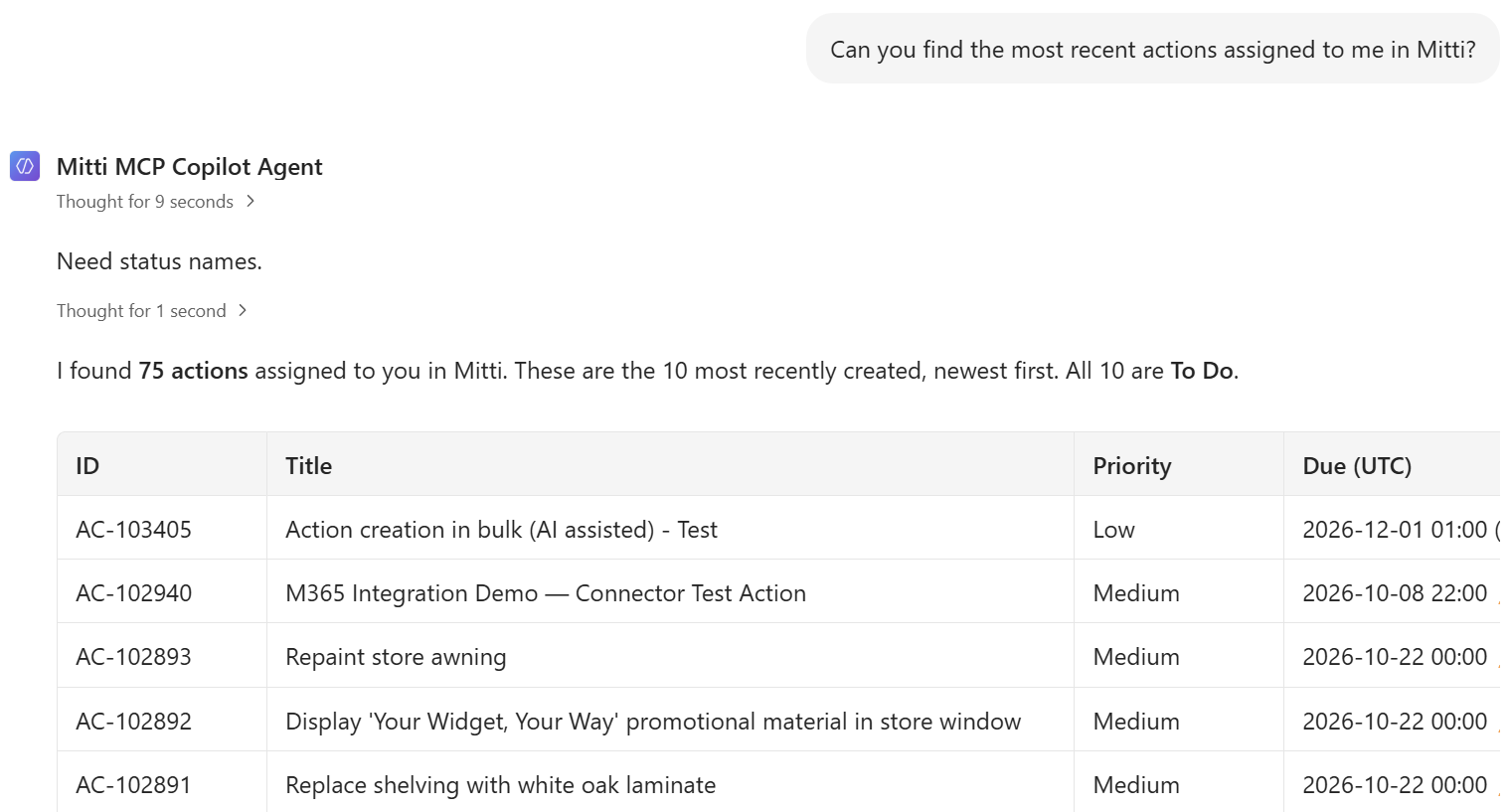
Ask questions, get answers
Skip the filters and file exports. Ask Copilot a direct question about your business operations and get a direct answer with Mitti data.
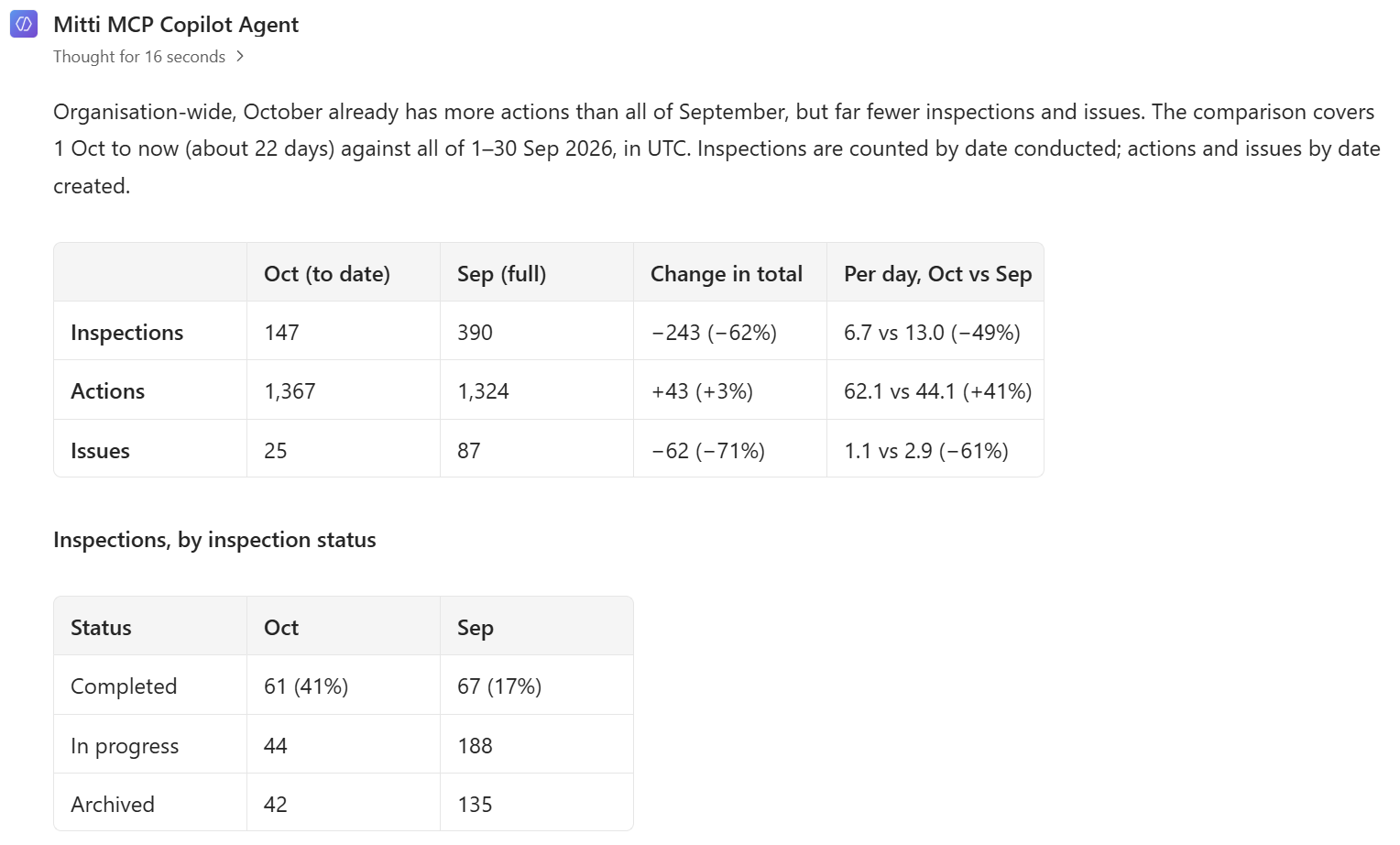
Instant Reporting
Turn a request like "compare this month to last" into a finished summary, no dashboard building required.
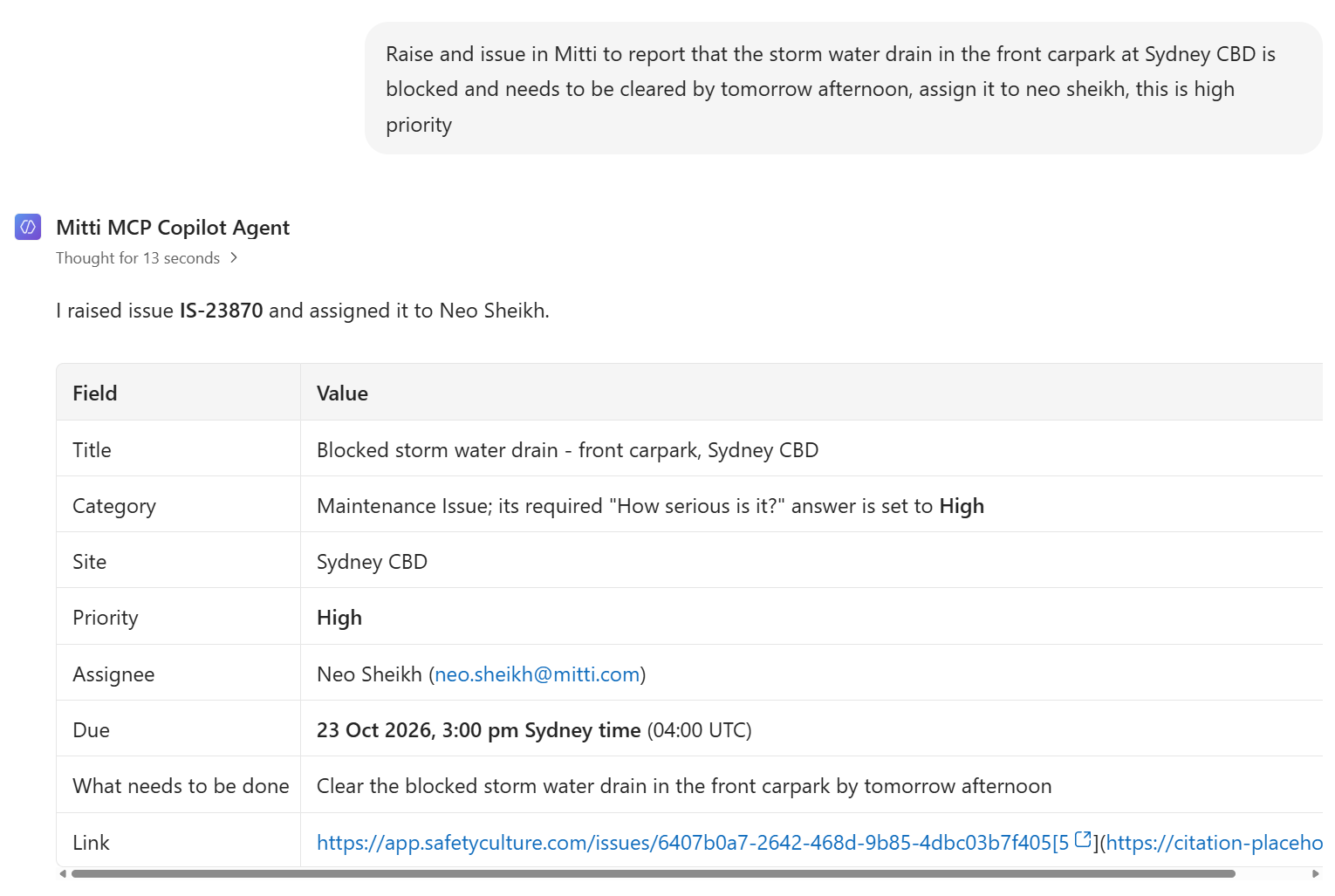
Read only by default, write with approval
Copilot reads your Mitti data through a secure, per-user connection. Grant MCP write permissions to users to power advanced workflows.
Description
Connect Copilot to Mitti with our official MCP connector. Read and write data using powerful AI tools to automate business process and analyse operational performance.
MCP connections to Copilot require the use of Copilot Agent Studio by a Microsoft Tenant System Administrator.
Steps for an administrator to connect Copilot to Mitti:
MCP connections to Copilot require the use of Copilot Agent Studio by a Microsoft Tenant System Administrator.
Steps for an administrator to connect Copilot to Mitti:
- Go to the Copilot Studio agents page and create a new agent.
- Select Tools.
- Select Add, then choose Model Context Protocol (MCP).
- In Server name, enter Mitti.
- If you get an error, use a different name, such as OrganisationMitti. Microsoft doesn't allow duplicate MCP server names, so someone else may have already used Mitti.
- The name must be alphanumeric, with no special characters.
- In Server description, enter: Connect to your Mitti account using the Mitti Connector
- In Server URL, enter: https://mcp.mitti.com/mcp
- For Authentication, select OAuth 2.0, then choose Dynamic discovery.
- Select Add.
- Publish the agent for access within your organisation by users
There are two types of Copilot Agents with different purposes:
- Choose a Github Copilot agent to allow complex interactivity from Microsoft Copilot, this type of agent allows rich conversations taking action based on user instructions across the Mitti platform. This type of Agent will require Copilot Credits, see the FAQ
- Choose a Standard agent if you only want to automate a business process, you will need to restrict the MCP tools available and give the agent precise instructions on the task it performs.
Mitti public MCP is in Preview.
FAQ
Yes, control user's access to the MCP using permissions to control Read and Write access. Use Copilot Agent's tool controls to configure fine grained control over specific tools and require user confirmation for selected actions.
During Preview the MCP is available at no additional cost to Premium and Enterprise customers. Some tool functions will consume Mitti AI credits where the MCP invokes a Mitti AI agent.
A Github Copilot agent is a powerful, general purpose agent, it does not relate to the use of the Github code repository.
These are our recommended configuration steps in the Power Platform Admin Center after credits have been purchased; menu names may differ slightly by tenant.
These are our recommended configuration steps in the Power Platform Admin Center after credits have been purchased; menu names may differ slightly by tenant.
- Find the environment. In Copilot Studio, note the agent's environment. Here Create the billing plan. In the Power Platform Admin Center, go to Licensing > Copilot Studio > Manage billing plans > New billing plan.
- Name: letters and numbers only, no spaces or symbols (for example MittiMCPCopilotPAYG).
- Azure subscription: Company Microsoft Co-pilot Usage.
- Resource group: copilot-credits-rg (an existing group in that subscription; it holds the billing resource and shows charges in Azure Cost Management).
- Meter: tick Copilot Studio only. Do not tick Dataverse, Power Apps, Power Automate, Power Pages or Windows 365 for Agents, because the Default environment is shared and those would bill other people's usage to this subscription.
- Attach the environment. Add the Environment to the plan. A plan with no environment attached bills nothing.
- Set the agent limit. Go to Licensing > Copilot Studio > Manage Agents, open Mitti MCP Copilot Agent, and set:
- Capacity limit: For example 20,000 Copilot Credits per month.
- Stop Usage: tick "Turn off agent when consumption reaches 100%". Without this the limit is only a threshold and the agent keeps billing.
- Overage notification: tick it and set 80%.